Why won't Windows open my iPhone HEIC photos?
Windows needs two separate Microsoft Store components to read a .heic file. Here is what each one does, and how to convert to JPG in a browser tab with neither.
Copy a folder of iPhone photos onto a Windows PC and half of them behave like broken files. Photos throws an error and File Explorer gives you no thumbnail. Nothing is wrong with the pictures. Windows ships without an HEVC decoder, and HEVC is the codec sitting inside every .heic your phone has written since iOS 11 made the format the camera default in 2017.
There are two ways out. You can install the Microsoft Store pieces that teach Windows to read HEIC, which is worth doing if you'll keep working with these files locally. You can also convert the photos to JPG in a browser tab, with no install at all. We built the second option: our converter carries a HEIF decoder compiled to WebAssembly, so Chrome and Edge on Windows read the file even though no Chromium build renders HEIC natively.
Why won't Windows open my iPhone photos?
HEIC names a HEIF container, standardized by MPEG as ISO/IEC 23008-12, with four bytes near the start declaring which codec is inside. The heic brand means HEVC. Change those four bytes to av01 and the identical container becomes an AVIF, which is why one of them plays in every browser and the other barely leaves Apple's ecosystem. Windows has no HEVC decoder out of the box, so Photos, Paint and File Explorer thumbnails all fail on the same file for the same reason. Firefox doesn't render HEIC on any platform either. Safari 17 does.
Two details surprise people. HEIC carries 8-bit alpha through an auxiliary image, so it isn't always opaque. It also stores rotation and cropping as instructions, leaving the pixels alone, which is why a converted photo sometimes lands sideways in software that ignores those instructions. MDN's image format guide is the clearest rundown of which container carries which codec.
Which two Microsoft Store components do I need?
Most people stop here. The free HEIF Image Extensions package opens the container, and it's the one every forum thread tells you to install. On its own it doesn't get you a picture. HEVC Video Extensions decodes the actual pixels, it's a separate Store listing, and Microsoft charges for it to cover its own HEVC royalties. Install the free one alone and you'll get the same gray box you started with, which is the single reason this feels like a Windows bug when it's really a licensing arrangement.
AVIF has the same shape of problem on your PC with a different fix. It wants the AV1 Video Extension, and the HEIF package alone won't cover it. caniuse tracks the browser side of that, which has been settled since Edge picked AVIF up in January 2024.
How do I convert HEIC to JPG on Windows without installing anything?
Open heic-to-jpg and drop the files in. The converter parses the HEIF container in WebAssembly, using a build of the same libheif lineage that Linux distributions ship, so whether the Store components are installed makes no difference to the result. A batch is capped at 10 files and 50 MB in total. JPEG comes out at quality 85 by default, and any transparency the HEIC carried is composited onto white, since JPEG has no alpha in any mode.
HEIC is decode-only here. You can leave it for JPG, PNG or WebP, and nothing in the toolset writes a .heic back out. Those are three of the 24 conversion pairs we ship across 11 formats.
Should I convert to JPG, PNG or WebP?
JPG for anything that has to open on someone else's machine. WebP if the photos are headed for a website. PNG stays lossless, which makes it the right intermediate for editing and the wrong thing to email, and which pictures belong in which of the two formats is the longer answer. File sizes are less predictable than the format names suggest. Here's one 3840x2160 source JPEG, 538.6 KB, run through our compressor at matching slider values:
| Format | Slider 80 | Slider 63 | Encode speed |
|---|---|---|---|
| JPEG | 286.1 KB | not run | instant |
| WebP | 290.3 KB | 200.6 KB | instant |
| AVIF | 312.7 KB | 186.9 KB | about 10 to 11 seconds |
That table looks backwards until you know why. JPEG's slider gets rescaled against the source's own estimated quality, read out of its quantization tables, so a 60-quality source asked for at slider 80 is really being encoded at 48. WebP and AVIF take the number literally. AVIF wins on bytes and loses badly on time, which is a fair trade for a web asset and a poor one for 200 holiday photos.
Why is the JPG bigger than the HEIC I started with?
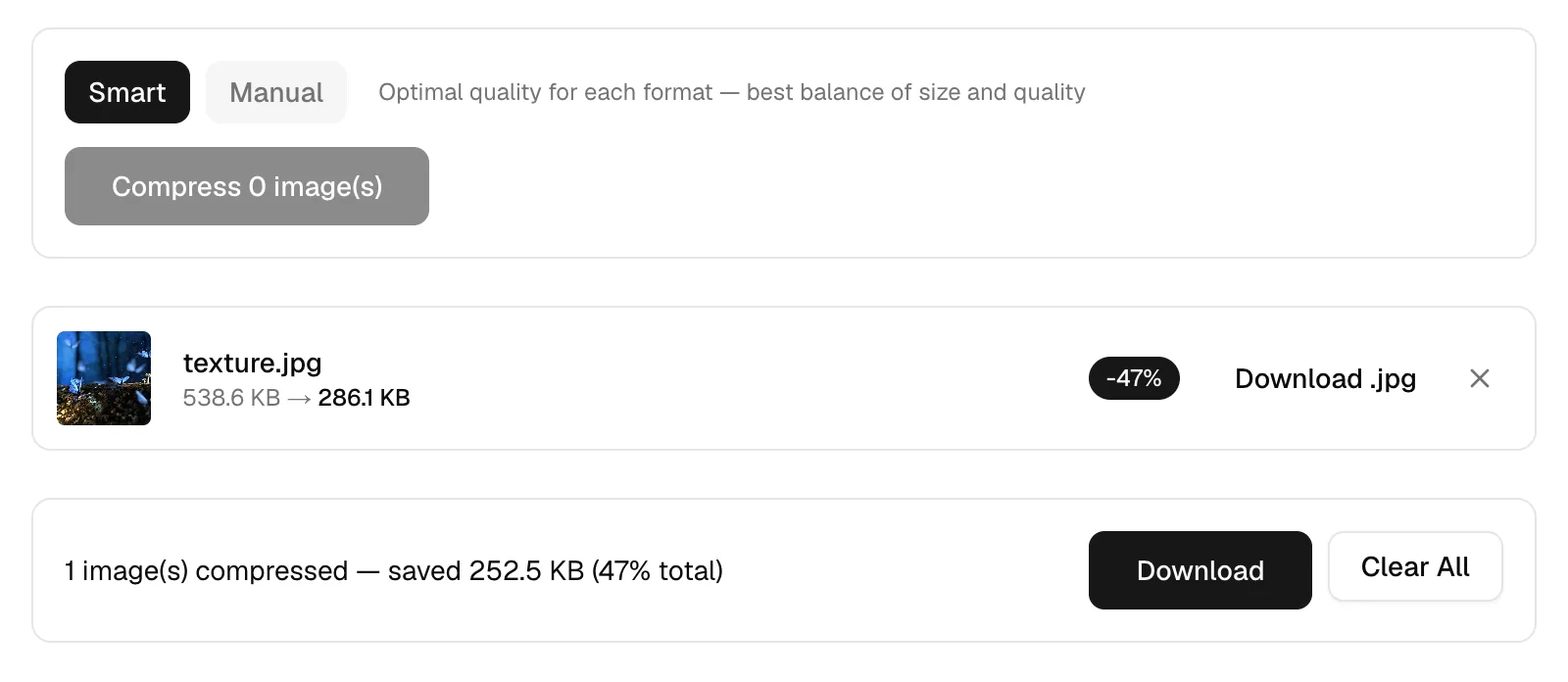
HEVC intra coding is simply better at this than JPEG, at roughly half the bytes for matching quality, so the file growing on conversion is expected. Growth is normal. Send the JPGs through the compressor afterward and you'll get most of it back: smart mode took that 538.6 KB texture.jpg down to 286.1 KB, a 47% cut, with no settings touched. Dragging the slider to 30 on the same file gave 131 KB, down 76%, which is fine for a group chat and visibly rough on a 27-inch monitor.
Why did nothing happen when I dragged the photo in?
Dropping files on the box keeps the ones the browser reports as image/*, and a Windows install that has never been taught about .heic can hand over an empty type for it. Use the picker. Clicking the drop zone opens the normal file dialog, and that path applies no type filter of its own, so a file Windows can't classify still gets through. If you dropped 11 files or 60 MB, an error tells you so within a second.
Watch the per-tool limits while you're planning batches. Converter, compressor and resizer all take 10 files and 50 MB per run. The cropper and the icon generator take exactly one file at 10 MB, since neither makes sense in bulk.
Does anything get uploaded?
No. This app has no API routes and no server actions, and every network fetch is a same-origin asset, the decoder and encoder WebAssembly bundles among them. Your photos are read by JavaScript in the tab and go nowhere else. Every other HEIC converter you'll find works the other way around: the file travels to a server, gets decoded there, and a promise to delete it within an hour or two covers the rest. For a camera roll that still has GPS coordinates sitting in the EXIF, that distinction is worth something. Our privacy page lists what we do collect, which is page analytics and nothing whatsoever about your images.
Next: open heic-to-jpg, send the first ten photos through, then drop the JPGs straight into the compressor before you attach them to anything. If you're mailing the whole camera roll, the resize-then-compress order that gets a batch under Gmail's cap is the next thing to read. Two browser tabs, no Store purchase.