How do I compress a batch of photos for email?
Get a batch of photos under Gmail's 25 MB cap by resizing first and compressing second, with measured before-and-after sizes from our own tools.
Gmail cuts you off at 25 MB per message. A folder of photos straight off a camera will blow past that without trying, and the usual response is to attach four of them and give up on the rest. There's a better order of operations. Resize the photos first, compress them second, and a set that wouldn't fit becomes a set that fits with room to spare.
Both steps run inside your browser tab. LeanImg has no API routes and no server actions, so your photos never reach a server that then promises to delete them in an hour. Every competitor in this space uploads first. That difference is the whole reason we built the tools this way, and you can check it yourself in about ten seconds with DevTools open.
How big can an email attachment actually be?
Gmail's ceiling is 25 MB per message, and above it Google removes the attachment and drops in a Google Drive link. Microsoft's side is different: Exchange Online defaults to 35 MB for sending and 36 MB for receiving, an administrator can set anything from 1 MB to 150 MB, and Outlook for iOS and Android stops at 33 MB. So the person receiving your mail may have a tighter cap than you do.
Then there's the encoding tax. Attachments travel base64-encoded, which turns every 3 bytes into 4 characters (RFC 2045, section 6.8), and Microsoft's own limits table calls out the same 33% translation increase for messages leaving its datacenters. Work backwards from that. A 25 MB message ceiling is roughly 18 MB of actual files on disk, so 18 MB is the number to aim at.
Do I resize first or compress first?
Resize first. It's the bigger lever and it's the one people skip. A 3840x2160 photo carries 8.3 megapixels, and the 50% preset in our resizer takes it to 1920x1080, discarding three quarters of the pixels before any encoder touches them. The browser does that downscale itself through createImageBitmap with high-quality resampling. Nobody reading your email on a laptop will notice.
Don't expect the resizer to finish the job. It keeps whatever format came in and re-encodes lossy files at quality 90 by default, and PNG output stays lossless, so the byte savings you get are mostly from the missing pixels. It ships 15 social presets plus 25/50/75 percentage steps, and it takes 10 files or 50 MB per batch. Download the resized set, then feed it to the compressor.
How much does the quality slider actually save?
Here's one photo, texture.jpg at 3840x2160 and 538.6 KB, through our compressor at four settings. Smart mode is the default and it's the one you want for email. Where a form holds you to a fixed number instead, the reason the slider alone stalls at 131 KB is the piece for that.
| Setting | Output | Change |
|---|---|---|
| Smart mode | 286.1 KB | -47% |
| Slider 90 | 347.8 KB | -35% |
| Slider 60 | 212.4 KB | -61% |
| Slider 30 | 131 KB | -76% |
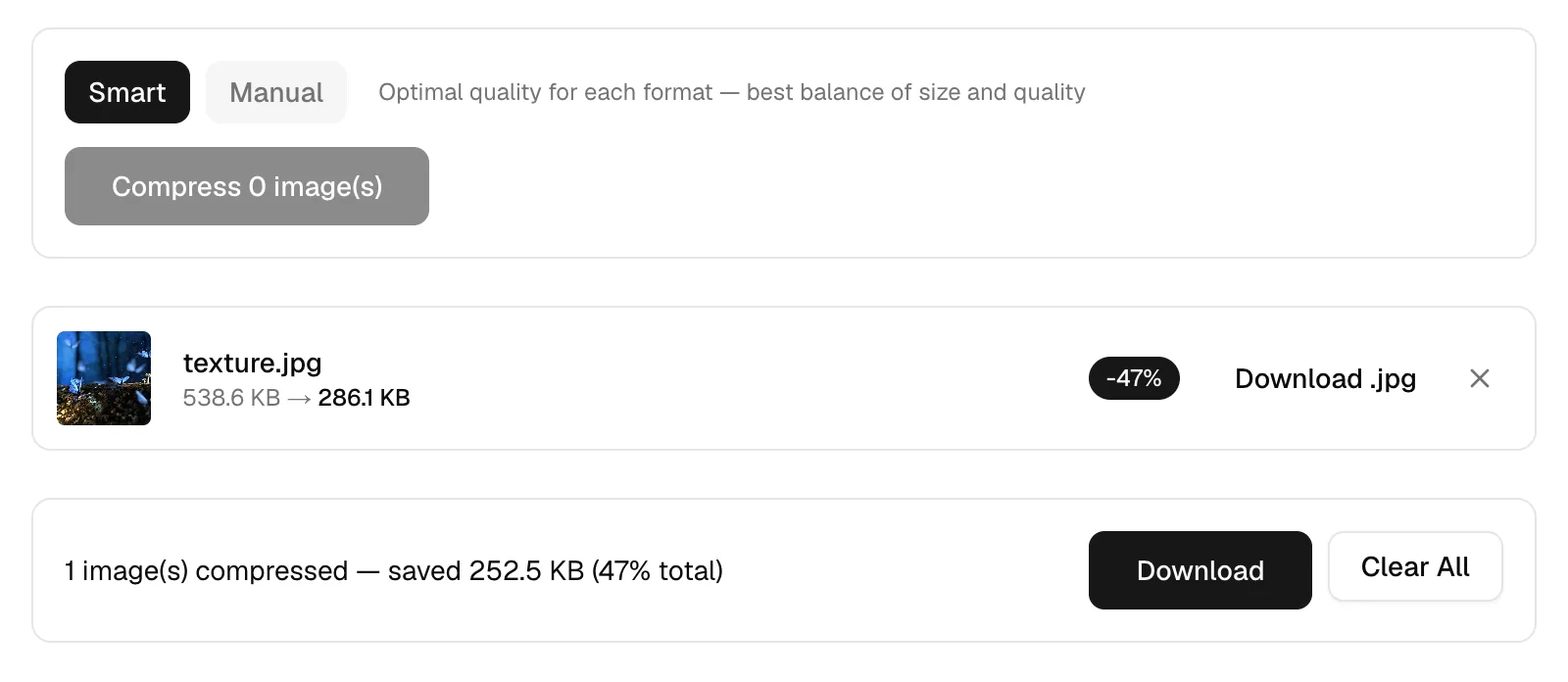
One thing about that slider surprises people. For a JPEG source it works as a multiplier: we read the source's own estimated quality out of its quantization tables and scale by whatever you set, so a photo originally saved at 60 with the slider at 80 encodes at 48. Re-encoding a quality-60 JPEG at a literal 80 would inflate the file while restoring nothing. Smart mode picks 80 for JPEG, 80 for WebP, 63 for AVIF and lossless for PNG, and the encoding is done by MozJPEG compiled to WebAssembly.
Why is my screenshot still huge after I compress it?
Because PNG is lossless, and lossless has a floor. Take alpha.png, 900x606 with transparency, 942.4 KB. The "PNG No compression" option runs oxipng at level 3 and gets it to 383.9 KB, 59% off with every pixel bit-identical to the original. The "PNG Smaller file size" option runs imagequant, which rebuilds the image on a 256-color palette, and that lands at 98.3 KB. Same picture, 90% gone.
Palette quantization suits flat UI color, logos and line art. It puts visible banding into gradients and skin tones, so photos are the wrong customer for it. If a PNG in your batch has no transparency at all, the cheapest move is PNG to JPG before you compress. The split between photographs and screenshots is the one that decides that.
Should I convert to WebP or AVIF to squeeze more out?
For email, no. Same texture.jpg, same slider position, three encoders:
| Format | At slider 80 | At slider 63 | Encode time |
|---|---|---|---|
| JPEG | 286.1 KB | not measured | instant |
| WebP | 290.3 KB | 200.6 KB | instant |
| AVIF | 312.7 KB | 186.9 KB | about 10 seconds |
That table looks backwards until you know why. JPEG's 80 got rescaled against the source's own quality, so it was effectively lower, while WebP and AVIF take 80 at face value. Drop AVIF to its smart default of 63 and it does win on size at 186.9 KB, which is the smallest number on this page. It also cost about 10 seconds an image, and AVIF support outside browsers is patchy. Your recipient's mail client isn't a browser. Send JPEG.
Does compressing remove the GPS location from my photos?
Yes, and it removes everything else too. Compression here decodes to raw pixels and re-encodes, which drops EXIF, GPS coordinates, camera model, the ICC profile and the embedded thumbnail. Image orientation survives, so nothing arrives sideways. That matters more than it sounds: photos of a house, a car or a kid's school carry the coordinates where they were taken, and emailing the originals hands those to whoever gets forwarded the message. Our privacy page spells out the rest.
Are the photos uploaded while any of this happens?
No. Open the Network panel in DevTools before you drop the files and watch: the codecs load once from the same origin, and after that no request carries your image anywhere. MozJPEG, oxipng and imagequant all run as WebAssembly in the tab, with the browser's own canvas encoder as a fallback for JPEG, PNG and WebP. Nothing to delete later, because nothing was ever stored.
Try it on the batch that's currently stuck in your drafts. Open the resizer, drop up to 10 photos, hit the 50% preset and download them. Run those through the compressor on smart mode, then read the total on the download-all button before you attach anything. Under 18 MB and Gmail will take it. If one of the files is a scan you're planning to send as a document, our piece on converting a JPG to PDF covers what that step does to the size.