PNG vs JPG: which one should you actually save?
Lossless versus lossy, the alpha channel JPG doesn't have and the chroma subsampling that blurs text, with measured file sizes from both formats.
PNG and JPG differ on one question: does the file remember every pixel exactly? PNG does. JPG discards detail that human vision is weak at catching, and it gets far smaller in return. That single split decides almost every case you'll hit, and it lands one way for a beach photo and the other way for a screenshot of a spreadsheet.
Every number below came out of LeanImg's own tools running in a browser tab, on two test files: texture.jpg at 3840x2160 and 538.6 KB, plus alpha.png at 900x606 and 942.4 KB with a transparent background. We built these tools with no API routes and no server actions, so the file never leaves your machine. Most sites in this category upload your image to a server and then promise to delete it an hour later. There's nothing here to delete, which is why our privacy page is short.
Which one should I pick, PNG or JPG?
Photos go to JPG. Screenshots, logos, charts, line art and anything that needs transparency go to PNG. MDN's format guide draws the same line. In smart mode our compressor took texture.jpg from 538.6 KB to 286.1 KB with MozJPEG at quality 80, a 47% cut. Drag the slider to 60 and the same photo lands at 212.4 KB. At 30 it's 131 KB, down 76%.
That split comes from how each format compresses. JPG's design assumes neighboring pixels blend into one another, which suits gradients and film grain. A screenshot breaks that assumption at every text edge. PNG predicts each pixel from its neighbors and then deflates the difference, so it does its best work on the flat runs of identical color that a user interface is made of.
What does lossless compression actually do to file size?
Lossless means the decoded pixels come back bit for bit identical, which the PNG specification requires. It doesn't mean the file can't shrink. Our compressor's PNG mode runs oxipng at level 3, and it took alpha.png from 942.4 KB to 383.9 KB. That's 59% off with every pixel value preserved.
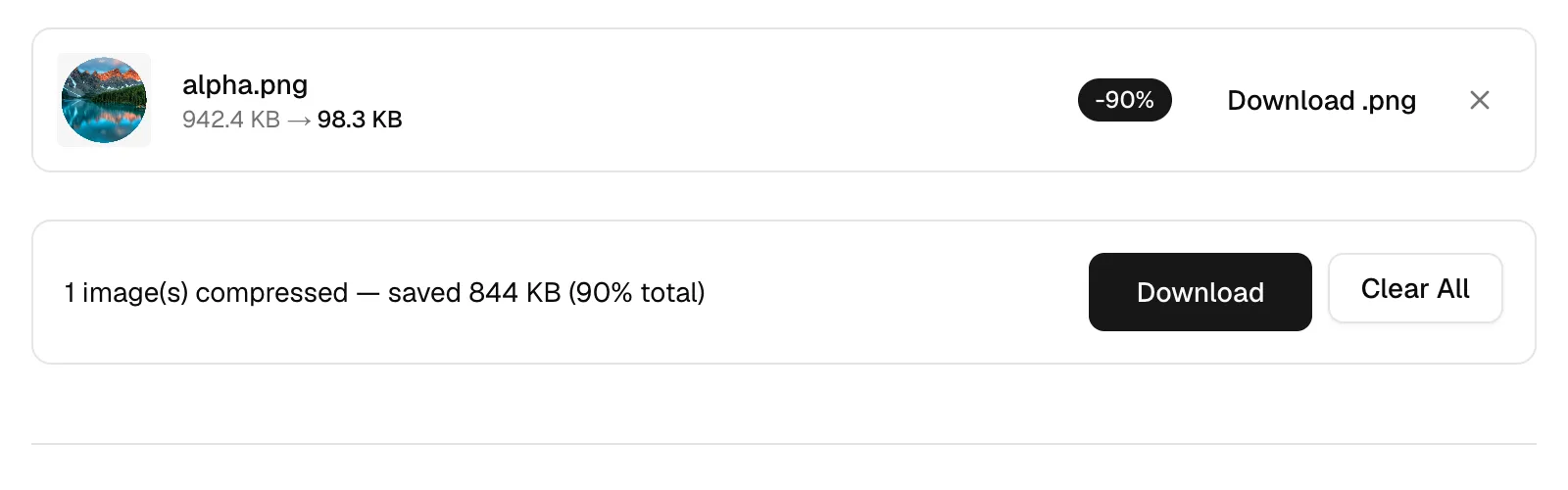
The "smaller file size" PNG option is a different animal. It runs imagequant, which reduces the image to a color palette before the PNG is written, and alpha.png came out at 98.3 KB. That's 90% off. It's a lossy result no matter what the .png extension implies, so hang on to the original if that image is a master copy.
Why does JPG smear colored text and thin lines?
Because JPG stores color at a lower resolution than brightness. The format keeps luma separate from the two chroma channels, as specified in ITU-T T.81, and encoders normally downsample chroma so that one color sample covers a 2x2 block of pixels. On a 3840x2160 photo like texture.jpg you won't spot it. On a one-pixel red line against white, the color of that line is averaged with three white neighbors before any quality setting is applied, and no slider position brings it back.
Screenshots are where it bites. Switching to WebP doesn't dodge it, because WebP's lossy mode is locked to 4:2:0 chroma and applies the same averaging. PNG keeps the exact RGB value of every pixel, which is why UI captures, QR codes and text overlays belong there. If the PNG is still too heavy, quantize it and keep the format.
What happens to transparency when I save as JPG?
It gets filled in. JPEG carries no alpha channel in any mode, so something's got to decide what sits behind your transparent pixels. Our PNG to JPG converter composites them onto white before encoding, and the compressor does the same whenever the target format has no alpha. Without that step they'd come out black, because a fully transparent pixel usually carries RGB 0,0,0 underneath.
You can't reverse that round trip. Going back through JPG to PNG hands you a PNG with a white rectangle where the transparency used to be, plus whatever JPG artifacts the first pass baked in. Compressing also strips every piece of metadata: EXIF, GPS, ICC profile and embedded thumbnail all go, though orientation survives. Keep the PNG master; you'll want it. If you're cutting a subject out of a photo, our background remover always writes PNG with alpha for this reason, which is also why a cutout comes back heavier than the JPG you dropped in, and the icon generator defaults its background color to #ffffff, so a transparent logo lands on a white square until you change that field.
Why is my PNG so much bigger than the JPG?
Photographic noise gives PNG's predictor nothing to work with. Each row is guessed from the row above and the leftover difference is deflated, which is superb on a flat button and close to useless on grain. Look at the two test files. alpha.png is 900x606 and arrived at 942.4 KB, while texture.jpg is 3840x2160, more than fifteen times the pixel count, and arrived at 538.6 KB. Palette quantization is the lever that closes that gap, and it took alpha.png to 98.3 KB.
Should I save WebP or AVIF and skip the question?
Sometimes, though it's worth measuring. We ran texture.jpg through the compressor at the same slider position of 80 for all three formats, then again at 63.
| Output format | Slider 80 | Slider 63 | Encode time |
|---|---|---|---|
| JPEG (MozJPEG) | 286.1 KB | not measured | instant |
| WebP | 290.3 KB | 200.6 KB | instant |
| AVIF | 312.7 KB | 186.9 KB | 10 to 11 seconds |
AVIF producing the largest file at slider 80 looks backwards, and the cause sits in our own code. For a JPEG source the compressor multiplies your slider by the quality it reads out of the source's quantization tables, so a source estimated at 60 with the slider at 80 actually encodes at 48. WebP and AVIF take 80 at face value. At 63, which is the smart-mode default for AVIF, the ordering flips: AVIF is 186.9 KB and WebP is 200.6 KB against that 538.6 KB source. AVIF also cost 10 to 11 seconds per encode where JPEG and WebP finished instantly, and it's worth checking browser support before you commit. We took that comparison apart at length in the piece on whether WebP really beats JPG.
What should I do with the file in front of me?
Open the compressor. Run your file twice. If it's a photo, take smart mode first, then push the slider to 60 and compare the two outputs at full zoom. If it has text or transparency, stay on PNG and try both PNG modes: lossless got alpha.png to 383.9 KB and the palette mode got it to 98.3 KB. Resize first when the image is headed for an 800px column, since the resizer writes PNG losslessly and re-encodes everything else at quality 90 by default. And if the destination is a document, a JPG lands on a PDF page re-encoded once more at quality 92, which is one extra generation to plan around.