How do I resize a JPG to under 100 KB?
The measured quality ladder for one 538.6 KB photo, why the slider stalls at 131 KB and why cutting pixels is the lever that actually hits a byte budget.
· Updated
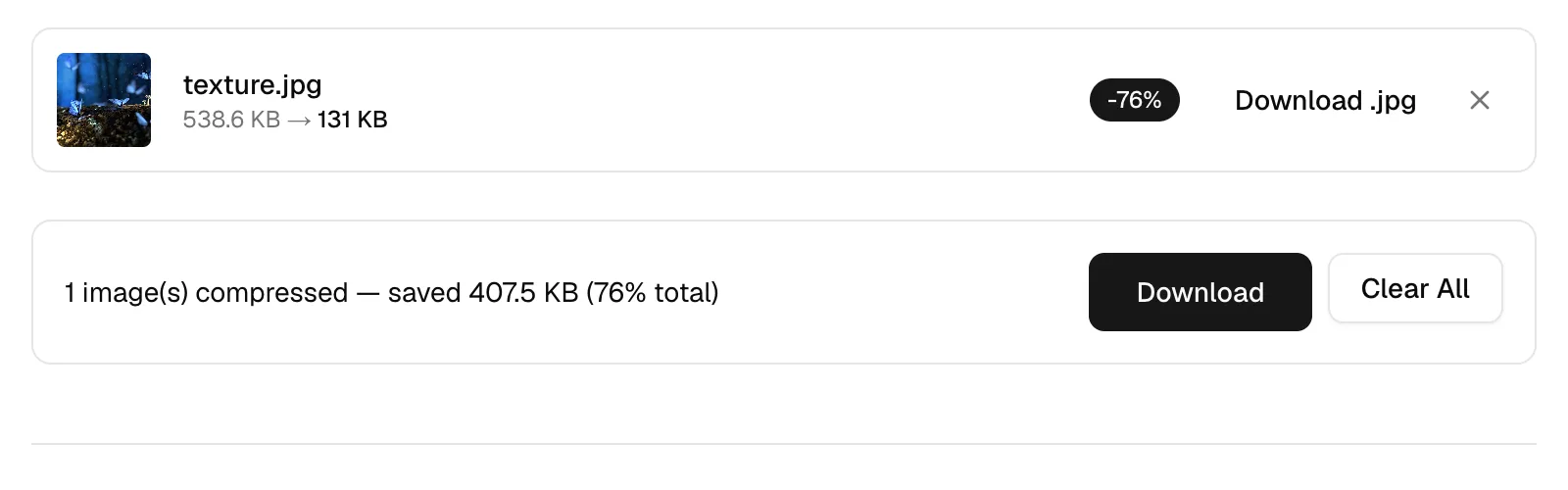
An upload form says 100 KB maximum. Your photo is 538.6 KB. The reflex is to grab the quality slider and drag it left, and for a big photo that reflex won't get you there. We took one file and ran the whole ladder: texture.jpg at 3840x2160, 538.6 KB on disk. Even at quality 30 it lands at 131 KB, and the picture is visibly chewed up by then.
The number that actually controls JPEG size is the pixel count. Baseline JPEG encodes the image in 8x8 blocks, so halving both dimensions leaves a quarter of the blocks to store. If you've only got the slider, you'll stall out around 131 KB on a file this size. Every figure below came out of our own compressor and resizer, running in a browser tab. There's no upload step to wait on.
Why doesn't the quality slider get me to 100 KB?
Here's the ladder, same source file each time, run in the image compressor on manual mode. Smart mode picks each encoder's own default, which is 80 for JPEG and WebP, 63 for AVIF and lossless for PNG.
| Setting | Output | Change |
|---|---|---|
| Slider 90 | 347.8 KB | -35% |
| Smart (slider 80) | 286.1 KB | -47% |
| Slider 60 | 212.4 KB | -61% |
| Slider 30 | 131 KB | -76% |
Sixty points of slider bought 216.8 KB. The last stretch, from 60 down to 30, gave up a lot of visible detail for 81.4 KB. A 3840x2160 photo has over eight million pixels to describe, and there's a floor under how few bytes will describe them at that size. The floor is real.
Why is quality 30 not really 30?
This one trips people up, and it's ours to explain. When the source is a JPEG, our compressor reads the quantization tables out of the first 64 KB of the file and estimates the quality it was saved at. Your slider then scales that estimate. A photo saved at quality 60, with the slider at 80, encodes at 48. The rescaling stops a second pass from claiming quality the pixels can't deliver, because re-encoding a quality-60 file at 90 just spends bytes describing damage that's already baked in. The encoder underneath is MozJPEG. One more thing worth knowing: compressing strips every scrap of metadata, EXIF, GPS, ICC profile and embedded thumbnail. Orientation survives.
Why doesn't the estimate next to the slider match the result?
Because it's a curve, not an encode. The panel prints that number before anything runs, from two things only: your file size and the slider position. It's the original bytes multiplied by the slider over 100, raised to the power of 1.8. It never sees a pixel of your image, and it doesn't know about the rescaling above either, so in the quality-60 example it prints a figure for 80 while the encoder is about to use 48.
On the same 538.6 KB test file the gap is wide, and it changes direction across the range. At slider 90 the panel predicted 445.5 KB against an actual 347.8 KB, 28% high. At slider 30 it predicted 61.7 KB against an actual 131 KB, 53% low. Read that second one again if you're aiming at a 100 KB limit: the estimate says you cleared it by 38 KB at the moment the encoder is about to miss it by 31. The KB on the result card is the only number worth acting on. In the palette PNG mode there's no estimate at all, and the panel prints a warning in its place.
How do I actually get a JPG under 100 KB?
Cut pixels first, then compress. Open the resizer and use the percentage presets, which are 25, 50 and 75. Fifty percent takes 3840x2160 down to 1920x1080, a quarter of the pixels. Twenty five percent takes it to 960x540, one sixteenth. There are also 15 social presets at fixed dimensions, from a 1080x1080 Instagram square to a 2560x1440 YouTube banner, plus an exact-pixels mode with cover, contain and stretch fit modes. That exact-pixels mode is how a 600 x 600 passport square gets typed in without squashing a face. If you're aiming at 100 KB from a 4K photo, start at 25% and work up.
Two things about the resizer are worth knowing first. PNG output stays lossless, and every other format gets re-encoded at quality 90 by default, so a JPEG that passes through both tools is encoded twice. Animated sources come out as one still frame. And when the compressor's output would be larger than the file you fed it, it hands your original back untouched.
Would WebP or AVIF get me there faster?
| Encoder | Slider 80 | Slider 63 |
|---|---|---|
| JPEG | 286.1 KB | not measured |
| WebP | 290.3 KB | 200.6 KB |
| AVIF | 312.7 KB | 186.9 KB |
Read that table twice. At the same slider position of 80, JPEG produced the smallest file and AVIF the largest, which looks backwards until you remember the rescaling above. JPEG's 80 was scaled against the source's own estimated quality, so it wasn't really 80, while WebP and AVIF take the number literally. Drop them to AVIF's smart default of 63 and the modern codecs pull ahead: 200.6 KB for WebP, 186.9 KB for AVIF. Both are still a long way from 100 KB at 3840x2160, which is the whole point. AVIF also cost about 10 to 11 seconds per encode on this machine, while JPEG and WebP came back instantly, and browser support is younger. Our JPG to WebP path is locked to 4:2:0 chroma, so hard red edges soften a little.
What if my file is a PNG with transparency?
Different lever entirely. We ran alpha.png, 900x606 and 942.4 KB with a real alpha channel, through both PNG modes. The "No compression" option is oxipng at level 3, fully lossless, and it returned 383.9 KB. That is a 59% cut, with every pixel intact. The "Smaller file size" option runs libimagequant, which reduces the image to a palette, and it returned 98.3 KB. That's 90% off, and it clears a 100 KB budget without touching the dimensions. Palettes band smooth gradients, so check a sky or a soft shadow before you ship it. Transparency survives both modes. Ask for JPEG output and the alpha channel is gone, matted onto white.
Can I crop my way down to 100 KB?
Partly. Cropping removes pixels, so it removes bytes. Our cropper takes one file at a time up to 10 MB and offers eight aspect presets plus a custom W:H ratio. There's no field for typing a target width in pixels, so you can't aim at an exact output size, and every crop of a lossy format is re-encoded at a hardcoded quality of 92. A GIF comes back as a single-frame PNG. For hitting a byte budget, the resizer's percentage presets give you a more direct handle.
Does any of this upload my photo?
No. This app has no API routes and no server actions, and the only network requests it makes are same-origin fetches for its own assets and WASM codecs. Your file gets decoded to a canvas and encoded again by WASM in the same tab. Most other tools in this category work the opposite way: your image travels to their server and sits in their storage until a retention timer fires. That's the difference our privacy page spells out. It's also why a batch here is capped at 10 files and 50 MB, since your own CPU is doing the work. That same cap is why a folder with 300 files in it is not a browser job.