Is WebP actually smaller than JPG for website images?
We compared JPG, WebP and AVIF on the same 538.6 KB photo at the same slider, and JPG won. Here is why that happens and what the fair comparison shows.
Every guide tells you WebP runs about 30% smaller than JPG at matching quality. Google's own study is where that figure comes from. We ran the comparison on our own compressor with one 3840x2160 photo, texture.jpg at 538.6 KB, and at the same slider position the JPEG won: 286.1 KB against 290.3 KB for WebP. AVIF, the format that's supposed to beat both, landed at 312.7 KB.
Nothing was broken. The three formats read that slider differently, and one of them does it deliberately. Once you know which one, the result flips back the way you'd expect, and you get a habit that's worth carrying into whatever tool you already use.
Why did WebP come out bigger than JPG at the same slider?
Our compressor has a quirk that plenty of tools share and almost none of them mention. When the output format is JPEG and the input was already a JPEG, it reads the quantization tables out of the source file, estimates the quality that file was saved at, then multiplies your slider against that estimate. A source scoring 60 with the slider at 80 gets encoded at 48. WebP and AVIF get no such treatment, so 80 means 80 and the encoder does what it's told. That run at the top was JPEG at an effective 48 against WebP at a literal 80. A file compressed harder is smaller.
The rescale earns its place. Re-encoding an already-lossy JPEG at 80 when it was written at 60 adds bytes without adding any detail back, so we treat the slider as a fraction of what's left in the file. The deeper problem belongs to JPEG itself: the spec stores raw quantization tables and never stores a quality number, so 75 in Photoshop, 75 in MozJPEG and 75 in some PHP script are three different files. Matching the number on two sliders and calling it a fair test doesn't work.
What do the sizes look like when you compare them properly?
| Encode | Slider | Output |
|---|---|---|
| texture.jpg source | 538.6 KB | |
| JPEG (MozJPEG) | 80, rescaled to 48 | 286.1 KB |
| WebP | 80, taken literally | 290.3 KB |
| AVIF | 80, taken literally | 312.7 KB |
| WebP | 63 | 200.6 KB |
| AVIF | 63 | 186.9 KB |
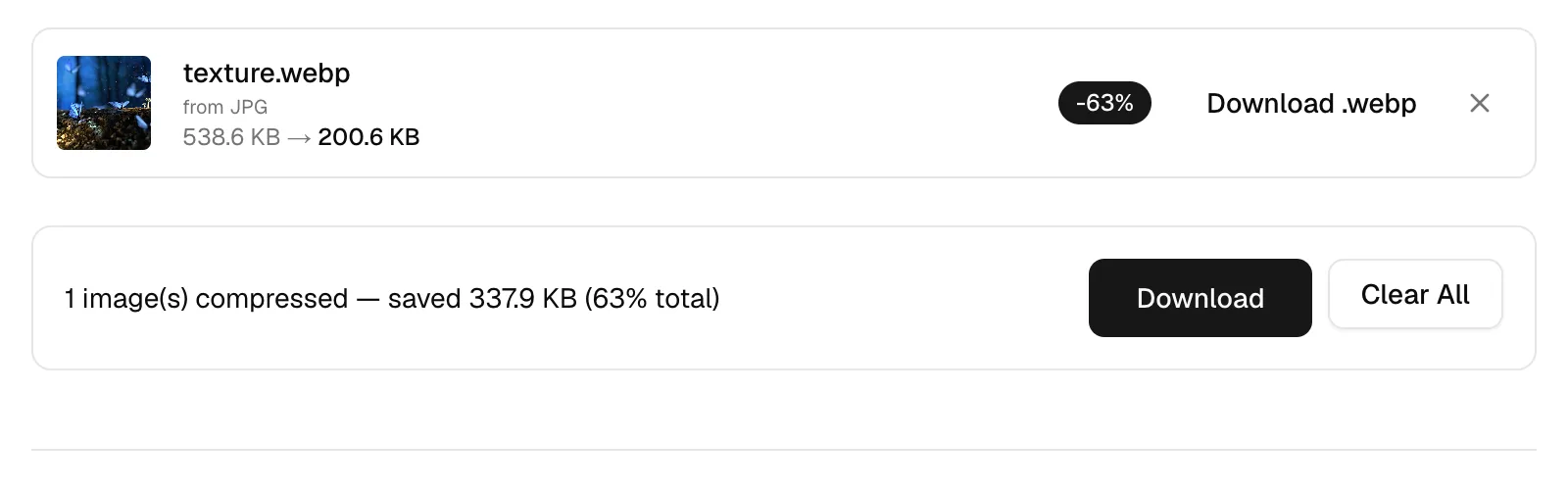
At 63, WebP writes 200.6 KB out of that 538.6 KB source. AVIF at the same setting goes to 186.9 KB, and 63 is what our smart mode picks for AVIF anyway, so it isn't a number we chose to flatter the format. Match the output sizes first, then open both files at full size and decide which one you can live with. That's the comparison worth having.
Should I just use AVIF then?
On bytes, AVIF wins. On patience, it loses. Encoding that 3840x2160 frame to AVIF took roughly 10 to 11 seconds in the browser, while JPEG and WebP came back instantly. All of this is WebAssembly running on your own machine, so that's your laptop doing AV1 intra coding, and the cost scales with pixel count. There's a second catch worth knowing: if the WASM encoder fails, we fall back to the browser's canvas encoder, and canvas can write JPEG, PNG and WebP but has no AVIF path at all. For a large batch, Google recommends the native avifenc tool over WebAssembly builds, and what ten AVIF encodes in one tab cost you is measured too.
What do I lose when I turn a JPG into a WebP?
Three concrete things. Metadata goes first: compressing or converting decodes the image to raw pixels and re-encodes it, so EXIF, GPS coordinates, the ICC profile and the embedded thumbnail are all gone from the output. Orientation survives, because the browser applies it during decode. If you need the capture date, keep the original file. And a lossy JPG re-encoded as lossy WebP is a second generation of loss stacked on the first, so do it once from the best source you have.
Chroma is the second loss. Lossy WebP is locked to 4:2:0 subsampling, with no 4:4:4 option anywhere in the format, so a screenshot of syntax-highlighted code or a logo sitting on saturated red can look worse in WebP than in a JPEG of the same weight. Photos don't care. Rendering is the third: a progressive JPEG paints a rough full frame early and sharpens as bytes land, and WebP has no progressive mode, so a big one shows nothing until enough of it arrives. On a hero image over a weak connection, that changes how fast the page feels even when the file is smaller.
Does WebP still win if the image has transparency?
JPEG can't do transparency. There's no alpha channel in any JPEG mode, so for a logo or a cutout the real contest is PNG against WebP, and the case for each of those two formats is measured on these same files. Our PNG numbers set the bar you have to beat: alpha.png at 900x606 and 942.4 KB came down to 383.9 KB through lossless oxipng at level 3, and to 98.3 KB once imagequant reduced it to a palette, which is 90% off with the transparency intact. WebP stores its alpha losslessly even inside a lossy file, so cutout edges stay clean either way. If you're making the cutout in the first place, our background remover always writes PNG with alpha, and that PNG can go straight into the compressor afterwards.
Which one should I actually put on the site?
Ship WebP for photographs. Every current browser decodes it, Safari included, and the savings are real once you stop comparing slider numbers. Keep JPG where the file has to open in old software, or where a large hero benefits from progressive rendering more than it benefits from 30 KB. MDN's image format guide is the reference to check before you commit a whole library to one format.
Check the pixels first. A 3840px photo is four times wider than a 960px content column will ever display, and no codec gives you back what a resize hands over for free, so the resizer with its 25/50/75 presets is one click and usually beats the format argument outright. The quality ladder matters more than the format too. That same texture.jpg went to 212.4 KB at 60 and 131 KB at 30, and smart mode settled on 286.1 KB, 47% off, without asking you anything.
How do I run this test on my own image?
Open the compressor, drop your photo in and switch to manual. Pick JPG, note the size. Switch the format dropdown to WebP at that same slider and note that one. Then pull the WebP slider down until the two files sit within a few KB of each other, and look at them side by side at full size, because that's the only comparison that tells you anything. Batches cap at 10 files and 50 MB. If you'd rather skip the slider entirely, JPG to WebP encodes at a flat quality 80 with no rescaling, WebP to JPG goes back the other way with transparency matted onto white, and the PDF walkthrough covers the one conversion that makes files bigger.