How many images can I batch convert in a browser tab?
What a browser batch really costs: 10 files and 50 MB per run, one file at a time, and an AVIF encode that takes 10 seconds each.
5 min read
On this page

A folder with 300 files in it is what most people mean by "batch convert images". Here's what a browser tab really does with that. LeanImg's converter accepts 10 files and 50 MB per batch, and it walks through them one at a time, decoding and re-encoding each file before it touches the next. That's the ceiling. It's the price of the thing that makes the tool worth opening: nothing you drop on it ever leaves your machine.
Every other converter in this space posts your files to a server, converts them there and promises deletion in an hour or two. This one has no API routes and no server actions, so there's nowhere to upload to. Decode and encode both happen in your tab, through createImageBitmap and WASM codecs. Your CPU is the entire budget.
How many files can I convert at once?
Ten, on compress, resize and convert. Each of those also caps the batch at 50 MB total across all files. The cropper and the icon generator take one image and cap it at 10 MB, the upscaler allows 50 MB because a 4x model run on a small source still produces a large PNG, and remove background takes one image up to 50 MB too.
| Tool | Files per batch | Size cap |
|---|---|---|
| /compress-image | 10 | 50 MB total |
| /resize-image | 10 | 50 MB total |
| /convert | 10 | 50 MB total |
| /remove-background | 1 | 50 MB |
| /crop-image | 1 | 10 MB |
| /icon-generator | 1 | 10 MB |
| /upscale-image | 1 | 50 MB |
What happens to every file in the batch?
The loop is sequential. Each file is decoded to raw RGBA pixels, then re-encoded to the target format, and the loop awaits one result before starting the next. If a file fails to decode it's marked with an error and the run continues, so one broken PNG in a set of ten doesn't cost you the other nine. The compressor pushes its work into a single Web Worker so the page stays responsive while it grinds; the converter does its work on the main thread with OffscreenCanvas. Neither one spreads a batch across your cores.
Three per-file behaviors catch people out. Compressing strips all metadata, meaning EXIF, GPS, the ICC profile and the embedded thumbnail, though orientation survives. Converting to JPG or PDF composites transparency onto white, since neither format carries an alpha channel. An animated GIF loses every frame after the first, because no encoder on the conversion path writes animation.
Which conversions can I actually batch?
The registry holds 11 formats. Ten of them decode: JPG, PNG, WebP, AVIF, GIF, HEIC, SVG, TIFF, BMP and ICO. Only five encode: JPG, PNG, WebP, AVIF and PDF. So HEIC, SVG, TIFF, BMP, GIF and ICO are one-way doors, which covers the 15 pairs we publish. Batch a folder of iPhone HEIC into JPG and every file converts, which is the fix for a Windows PC that shows those photos as broken files. Ask for the reverse and there's no encoder to give you.
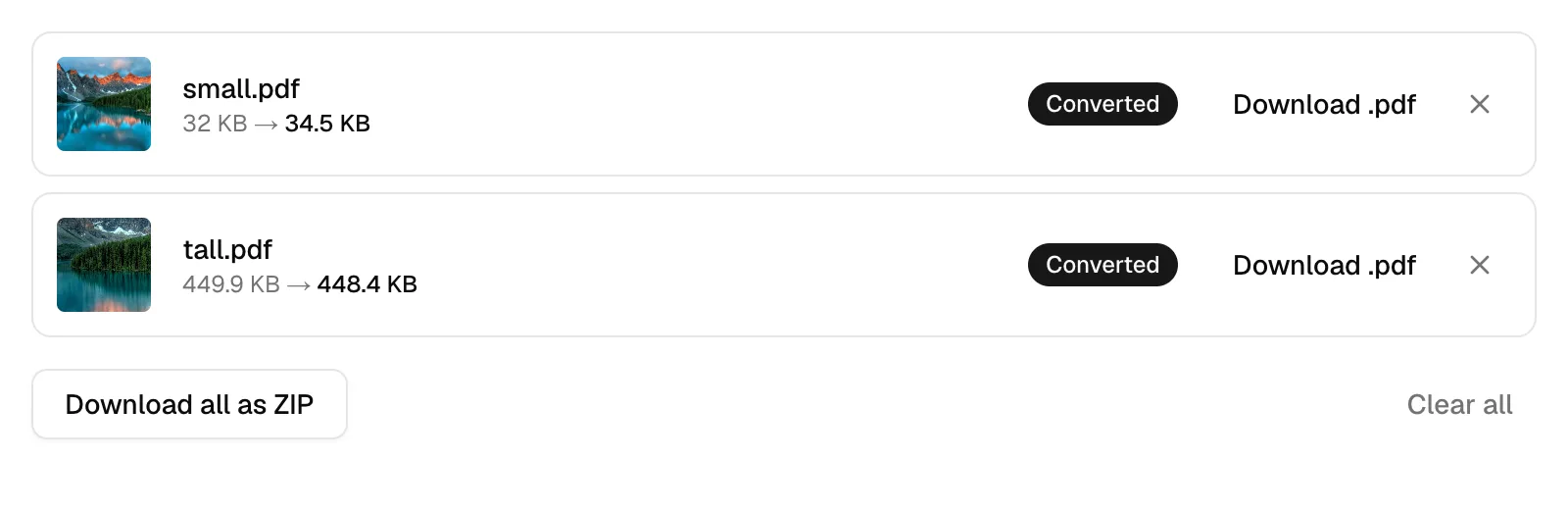
PDF is where the shape of a browser batch shows most clearly. Every image becomes its own single-page PDF. That's by design, and there's no merge step anywhere in the pipeline, so ten images give you ten PDFs rather than a ten-page document. The page image is embedded as JPEG at quality 92 through the browser's own canvas encoder, which is why a 538.6 KB JPG came out as a 674.2 KB PDF in our run. If you need one file with 40 pages in it, this isn't your tool.
Why does my batch crawl when I pick AVIF?
Because AVIF encoding is expensive. We ran the same source three ways, texture.jpg at 3840x2160 and 538.6 KB, and timed each encode.
| Target | Slider 80 | Slider 63 | Encode speed |
|---|---|---|---|
| JPEG | 286.1 KB | not measured | instant |
| WebP | 290.3 KB | 200.6 KB | instant |
| AVIF | 312.7 KB | 186.9 KB | 10 to 11 seconds |
The slider-80 column reads backwards until you know what that number means to each encoder. For a JPEG source, our JPEG path multiplies your slider by the quality it reads out of the source's quantization tables, so a 60-quality source at slider 80 encodes at 48. WebP and AVIF take 80 literally. AVIF's smart default is 63, and at 63 it wins on size: 186.9 KB against WebP's 200.6 KB. You pay in wall clock. Ten AVIF files in a sequential batch is a coffee break, and there's no canvas fallback for AVIF the way there is for JPG, PNG and WebP, so a WASM encoder failure means that file errors out. Check AVIF browser support before you commit a whole batch to it, and read why matching output sizes beats matching slider numbers before you decide the format at all.
When is a desktop tool the right answer?

Once the job is bigger than ten files, or once you need something these engines don't do. ImageMagick's mogrify walks a nested folder tree, saturates every core you own and writes results in place, which a single-threaded tab can't approach. MozJPEG is the same encoder we compile to WASM, and it runs a lot faster as a native binary. Desktop tools also merge many images into one multi-page PDF, keep EXIF and ICC through the round trip, watch a folder for new arrivals and let you type exact pixel dimensions. Our online image cropper has eight aspect presets and a custom ratio field, with no pixel width and height input at all, and it re-encodes lossy formats at a hardcoded quality 92.
The single-file tools stay single-file for reasons that won't change soon. The upscaler runs Real-ESRGAN and accepts 32 megapixels of input with WebGPU, roughly 1.1 MP without it. The background remover downloads an IS-Net model on first run and takes one image at a time. The icon generator takes one image and writes seven files from it, including a favicon.ico that packs 16, 32 and 48 pixel versions.
So what is a browser batch good for?
Ten product photos before a listing. A folder of screenshots for a doc page. Any image you can't hand to a stranger's server: passports, medical scans, signed contracts, client work under NDA. That last group is why we built it this way, and the privacy page says so in fewer words. When a batch finishes, Download all builds a ZIP in the tab and hands it to you, no round trip involved.
Test the shape of it before you plan a workflow around it. Open /convert, drop ten JPGs, click WebP and watch the per-file cards fill in one by one. If that finishes fast enough for you, the 10-file cap is academic. If you're converting scans to PDF, read what a JPG actually becomes inside a PDF first, because every page comes out at a nominal 54 DPI.