What size is a 2x2 passport photo, and what can a resizer actually check?
How to produce a 600 x 600 passport photo in the browser, why 300 DPI isn't stored in the file and which compliance rules a resizer cannot check.
Search for the size of a 2x2 passport photo and you get one number back: 600 x 600 pixels. That's two inches at 300 DPI. It's also the easy part of the job. A US passport photo has roughly a dozen rules attached to it, and exactly one of them is about pixel counts.
Our resizer takes JPG, PNG, WebP, AVIF and GIF, up to 10 files and 50 MB per batch, and it runs entirely inside your browser tab. Nothing gets sent anywhere. Here's how to land on 600 x 600 exactly, and then the list of things no resizer can judge for you.
What size is a 2x2 passport photo in pixels?
Two inches at 300 dots per inch is 600 dots across. So a 2 x 2 inch print at 300 DPI is a 600 x 600 pixel image, and the same print at 600 DPI is 1200 x 1200. The State Department photo page sets the digital submission range as a square JPEG between those two sizes. Square is what trips people up. Your phone shoots 4:3 or 3:4, never 1:1, so something has to be cut before anything gets resized.
| What you're doing | Pixel target | Path through our tools |
|---|---|---|
| Printing 2 x 2 inches at 300 DPI | 600 x 600 | Crop 1:1, then resize |
| Printing 2 x 2 inches at 600 DPI | 1200 x 1200 | Crop 1:1, then resize |
| Digital upload, smallest allowed | 600 x 600 | Resizer, pixel tab |
| Digital upload, largest allowed | 1200 x 1200 | Resizer, pixel tab |
Does 300 DPI mean anything inside the file?
Barely. DPI is an instruction for a printer, and the pixel count is the fact. Nothing in our resizer writes a DPI field at all, because the output is a fresh file drawn from a canvas. If a print shop asks for 300 DPI at 2 x 2 inches, hand them a 600 x 600 JPEG and you're finished. We measured how far this number can drift in the JPG to PDF write-up: our converter lays out a PDF page at 4/3 of a point per pixel, so a 3840 px image produces a 5120 pt page, 71.1 inches wide, a nominal 54 DPI. Print that same PDF fit-to-page onto A4 and it lands near 464 DPI. Same pixels either way. The DPI moved by a factor of eight.
How do I get exactly 600 x 600 without squashing my face?
There are two routes, and they differ in how much control you get over the crop. The quick one: open the resizer, drop the photo in, stay on the pixel tab, uncheck "maintain aspect ratio" and type 600 into both boxes. With the lock off and both dimensions filled, the engine center-crops. It scales the photo until it covers 600 x 600, then trims the overflow evenly off the two long edges. Portraits usually put the head near the middle, so this often lands fine.
The careful route is to crop first. Our cropper handles one file at a time, 10 MB maximum, and it ships a 1:1 preset. Drag the box until the head sits where the rules want it, export, then send that square into the resizer with the aspect lock left on. Typing 600 into either field gives you 600 x 600 because the source is already square. Two defaults are worth knowing before you start. "Do not enlarge" is checked when the page loads, so a source narrower than 600 px comes out unchanged, and the quality slider sits at 90 for JPEG output while PNG output ignores it and stays lossless. The cropper is blunter than the resizer: it re-encodes every lossy crop at a fixed quality of 92 and it has no field for typing pixel dimensions, which is exactly why the resizer follows it.
My photo is a HEIC off an iPhone. What do I do first?
The resizer accepts image/jpeg, image/png, image/webp, image/avif and image/gif. HEIC isn't on that list, because only Safari decodes it natively. Send it through HEIC to JPG first, and what Windows wants installed before it will show you a .heic at all covers the desktop side of the same format. The decode runs in the tab through a WASM build, and the JPEG that falls out goes straight into the resizer. One quirk to file away: HEIC is a HEIF container, the same container AVIF uses with a different codec inside it, so the file extension tells you less about the contents than you'd assume.
Can I upscale a small photo up to 600 x 600?
Technically, yes. Our upscaler runs Real-ESRGAN realesr-general-x4v3 in the browser and always writes PNG. A 400 x 269 test file of 177.1 KB came back as 800 x 538 and 782.8 KB at 2x, and 1600 x 1076 at 2.7 MB at 4x. The model only produces 4x, so the 2x option upsizes and then scales back down.
Don't do this to a passport photo. The model invents the pixels it adds. It's guessing at skin texture, hair and the edge of an iris from a source that never recorded them, and what comes out is a synthetic face wearing your bone structure. Retake the shot with the camera two feet closer. That takes a minute.
What does a resizer have no way of checking?
The measurement that fails most applications is head size. US rules put the distance from the bottom of the chin to the top of the head between 1 inch and 1 3/8 inches inside a 2 inch frame, which is 50% to 69% of the image height. In a 600 px tall file that's a head occupying 300 to 413 pixels. Nothing in our pipeline measures that. Then there's the six month recency rule, the plain white or off-white background, the neutral expression and the ban on glasses. Other countries don't even share the shape: a UK passport photo is 45 x 35 mm printed, so a square 600 x 600 file is the wrong geometry there before anyone looks at your face.
Our background remover runs the IS-Net model and always outputs a PNG with alpha. It deletes the background and never paints a replacement. Convert that PNG to JPG and the transparency mattes onto white, since JPEG carries no alpha channel in any mode, and you end up with a technically white backdrop. Whether the office accepts a cut-out background is their decision, and the official guidance page is the place to settle that before you pay a fee.
Is my passport photo uploaded to a server?
No. This app has no API routes and no server actions, and the only network traffic is same-origin asset loading. Every competitor in this space uploads your file and then promises to delete it in an hour or two. A passport photo is a face plus, very often, a document sitting next to it on the desk, so the difference between a promise and an architecture matters here more than usual. The background remover fetches its model file once on first run, which travels toward your machine. Full details are on our privacy page.
The upload form says my file is too big. Now what?
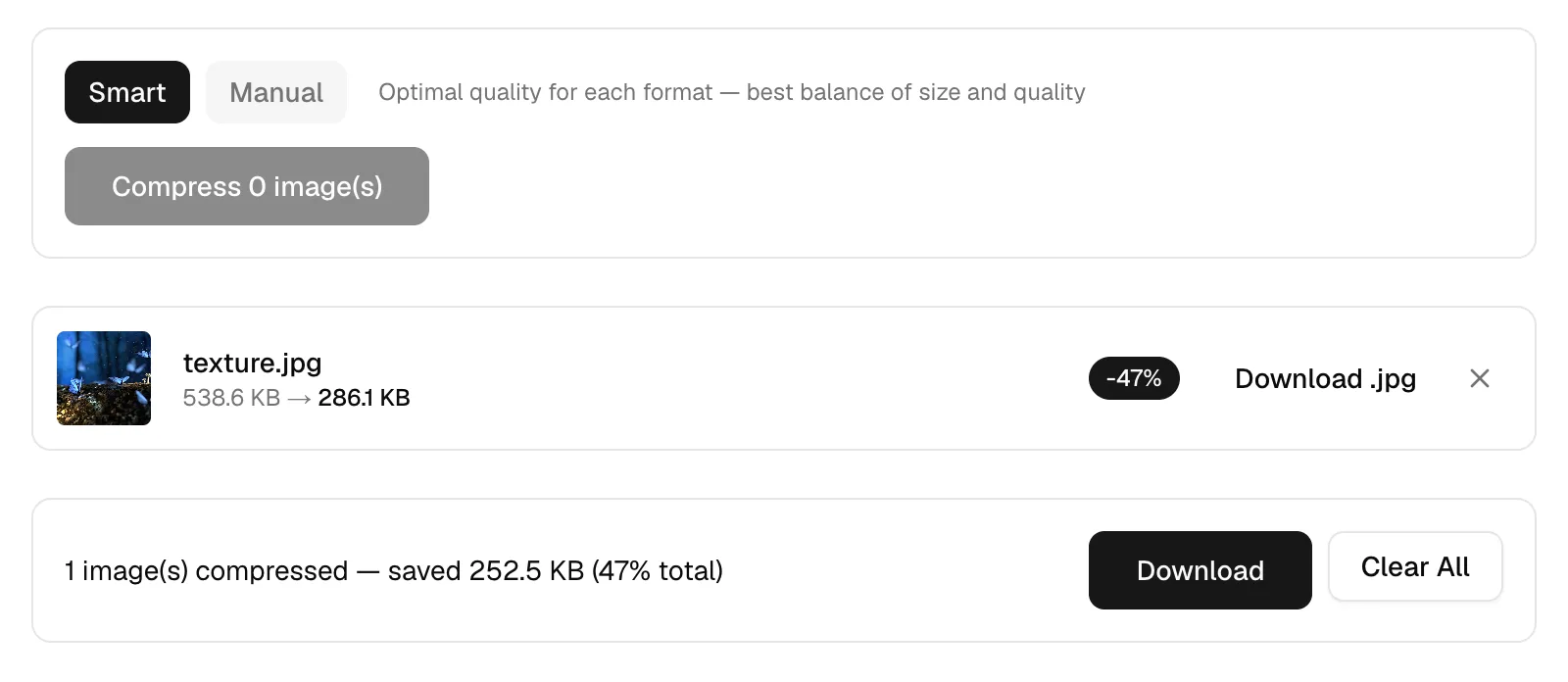
Run it through the compressor, the same route we measured against a hard 100 KB ceiling. Smart mode targets JPEG quality 80, and for a JPEG source that slider gets multiplied by the quality read out of the file's own quantization tables, so a photo originally saved at 60 with the slider at 80 actually encodes at 48. On a 3840 x 2160 test file of 538.6 KB, smart mode returned 286.1 KB, a 47% cut with MozJPEG doing the encoding. Dropping the slider to 30 took the same file to 131 KB. Don't take a face anywhere near that. One thing to know before you submit: compressing strips all metadata, meaning EXIF, GPS coordinates, the ICC profile and the embedded thumbnail. Orientation survives, so your photo won't come back sideways.
Do this next: open the cropper, pick the 1:1 preset, drag the box so the crown of the head sits just below the top edge, export, then drop that square into the resizer and type 600 into either field with the aspect lock on. Then open the official photo page in a second tab and measure your head against the 50% to 69% rule before you spend anything.