What size should an image be for Instagram?
The four Instagram shapes worth targeting, why every one of them is 1080 pixels wide, and what to fix in your export before the platform re-encodes it.
Instagram takes four shapes worth targeting, and our resizer ships every one as a button: Square Post at 1080x1080, Portrait Post at 1080x1350, Story / Reel at 1080x1920 and Landscape at 1080x566. Look at what they share. All four are 1080 pixels wide. That's the most useful number to hold onto before you export anything, because it's where the platform stops caring about your extra pixels.
The rest of this is about the pixels you don't need. A 3840x2160 photo is more than three times as wide as 1080, so Instagram resamples it and re-encodes it with settings you never get to see. You still control what it starts from. Below is how we'd set the export up in our own tools, with the numbers we measured running them.
What are the four Instagram image sizes?
These are the presets exactly as they're defined in the resizer's code. The ratios are just the division, done for you.
| Preset | Pixels | Aspect ratio | Where it lands |
|---|---|---|---|
| Square Post | 1080 x 1080 | 1:1 | Feed |
| Portrait Post | 1080 x 1350 | 4:5 | Feed, the tallest the feed accepts |
| Story / Reel | 1080 x 1920 | 9:16 | Stories and Reels |
| Landscape | 1080 x 566 | about 1.91:1 | Feed, the widest the feed accepts |
Two rows deserve a second look. Three of the resizer's 15 social presets land on the same 1080x1920 box, since Instagram Story / Reel, Facebook Story and TikTok Video Cover are identical targets, so one export covers all three. And Landscape isn't a round number because 1.91:1 doesn't divide into whole pixels cleanly. 566 is the honest rounding of 1080 divided by 1.91.
Why is 1080 pixels wide the ceiling?
Because that's what the feed serves. Meta's Content Publishing documentation spells out the feed image rules, and they're narrow: JPEG, 8 MB maximum, aspect ratio somewhere between 4:5 and 1.91:1. Anything wider than the display width gets downscaled on their machines with their filter and no preview for you. Handing them a 3840 pixel wide file won't buy sharpness at 1080. Do the downscale locally and you get to look at it before anyone else does. Our resizer asks the browser for the target size directly through createImageBitmap with resizeQuality set to high, and switches to a canvas drawImage pass when a crop is involved.
Should I crop to 4:5 or resize to 1080x1350?
Both, in that order. Framing first, exact pixels second. Our cropper takes one file at a time up to 10 MB and offers eight aspect presets: free, 1:1, 4:3, 3:2, 16:9, 9:16, 3:4 and 2:3. There's no 4:5 button, so type 4 and 5 into the custom W:H field. There's no pixel width or height input anywhere in the cropper either, which is exactly why the second step exists. Every crop re-encodes lossy formats at a fixed quality 92, and a GIF comes out of it as a single-frame PNG.
Then send the crop to the resizer and press the Instagram preset you want. Fit mode decides what happens next. Cover scales the image until it fills the target and center-crops the overflow, which is what actually produces an exact 1080x1350. Stretch forces the box and distorts. Contain is the one that surprises people, because it shrinks the canvas down to whatever fitted inside, so you get no padding bars and no 1080x1350. One quirk we built on purpose: the "do not enlarge" guard is ignored when you pick a social preset, since clamping each axis to the original produced files that matched no platform spec at all.
What does Instagram re-compress, and what can I control?
It re-encodes. What you control is the input. Our resizer writes PNG losslessly and re-encodes everything else at quality 90 by default, so a JPEG headed for the feed gets one careful pass from you and one from them. Keep your pass generous. Transparency is the other trap, because JPEG carries no alpha channel in any mode, so a PNG with a see-through background will be flattened by something. Our PNG to JPG converter mattes it onto white, which at least lets you check the result before it ships. Animated sources come out of the resizer as a single still frame, and it tells you when frames were dropped.
Do I need to compress before uploading?
Usually not for size. A 1080x1350 export is already small. There's a better reason to run a pass: our compressor strips all metadata on the way through, including EXIF, GPS coordinates, the ICC profile and the embedded thumbnail. Orientation survives, so nothing arrives sideways. On our test file texture.jpg, 3840x2160 and 538.6 KB, smart mode returned 286.1 KB, a 47% cut. The slider at 60 gave 212.4 KB and 30 gave 131 KB with damage you can see. Smart mode is quality 80 for JPEG, encoded with MozJPEG. One catch: when the source is already a JPEG we multiply your slider by the quality read out of its quantization tables, so a 60 quality source plus an 80 slider lands at 48. WebP and AVIF are the smaller formats for a website. Neither one helps for an Instagram upload, and if some other form is holding you to a hard byte limit, the measured ladder from 538.6 KB down to 131 KB is the one to read.
My photo is only 400 pixels wide. What now?
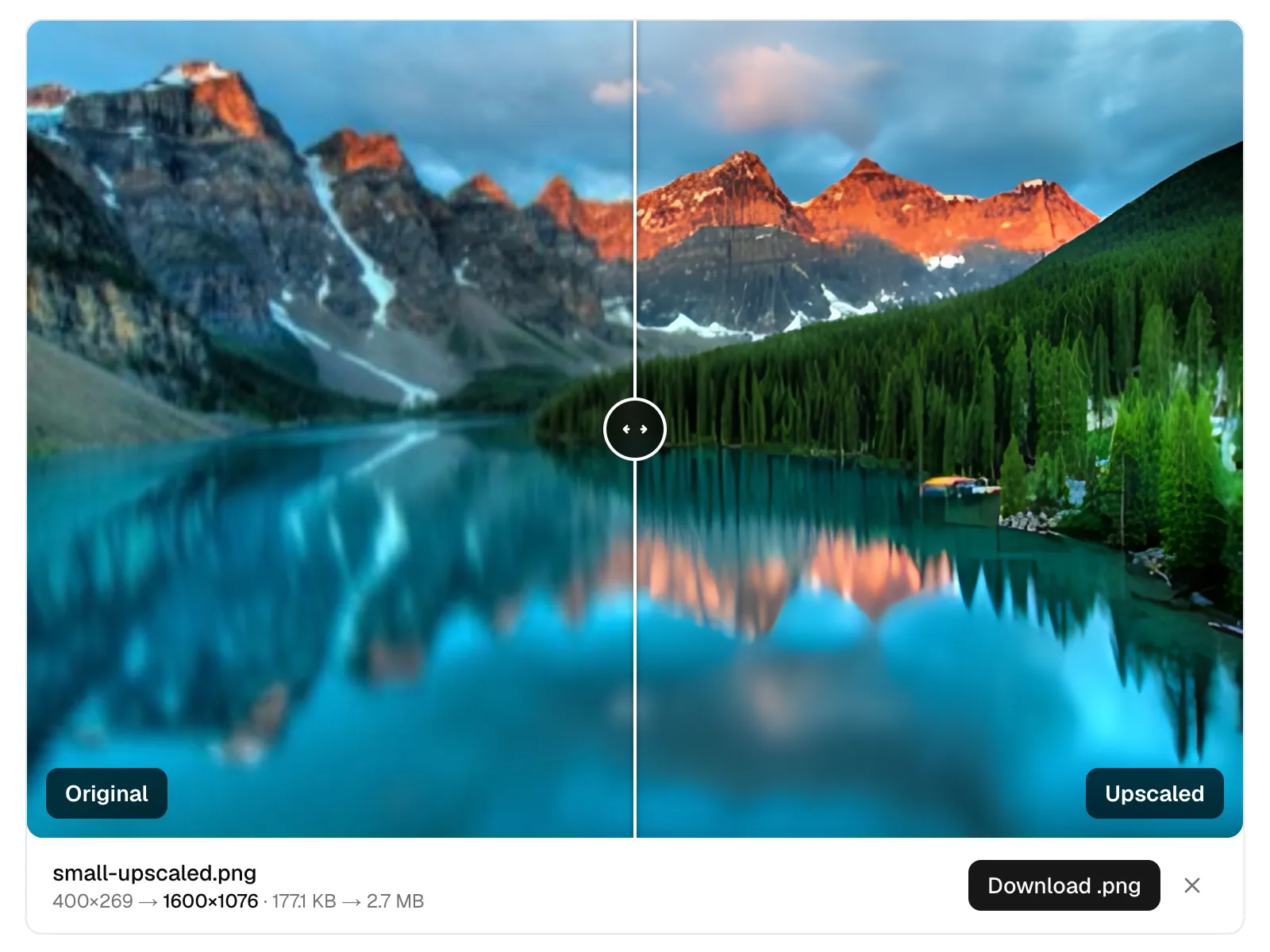
Then 1080 is an upscale, and a plain resize will look soft, which is the whole difference between a resizer and an upscaler. Our upscaler runs Real-ESRGAN realesr-general-x4v3 in the browser. On small.png, 400x269 and 177.1 KB, the 2x option produced 800x538 at 782.8 KB and the 4x option produced 1600x1076 at 2.7 MB. Only the 4x run clears 1080 on the long edge, which is what you need before downscaling into Landscape at 1080x566. The model itself only produces 4x, so our 2x option runs it and shrinks the result afterward. With WebGPU available it accepts 32 megapixels of input, and without it roughly 1.1 MP. Output is always PNG. So expect a heavy file on the way to a light one.
Does any of this leave my computer?
No. There are no API routes and no server actions in this codebase, and the only network requests are same-origin assets. Every competitor in this space uploads your photo to a server, then promises to delete it an hour or two later. Ours never sends it anywhere. That's also where the limits come from, since your own device does the work: 10 files and 50 MB per batch for the compressor, resizer, converter and background remover; one file at a time at 10 MB for the cropper and icon generator; one file for the upscaler. Our privacy page says the same thing in fewer words.
Do this now. Open the resizer, drop the photo in, pick Instagram Portrait Post 1080x1350, leave fit on cover and quality at 90, then download. If the center crop cut someone's head off, run the cropper first with a custom 4:5 ratio and come back. If the file still carries GPS coordinates you'd rather not publish, finish with a smart-mode pass through the compressor.